> For the complete documentation index, see [llms.txt](https://docs.onside.io/llms.txt). Markdown versions of documentation pages are available by appending `.md` to page URLs; this page is available as [Markdown](https://docs.onside.io/store/app-management/updating-apps-in-onside.md).
# Updating Apps in Onside
Learn how to update apps in Onside: check for new versions, enable auto-updates in settings, troubleshoot failed updates, and manage rollbacks.
Keeping your apps up-to-date is important for getting the latest features, bug fixes, and security improvements. Onside Store makes it easy to manage updates for apps you've installed through our marketplace.
### Why Update Your Apps?
Developers regularly release new versions of their apps to:
* Fix bugs and improve performance.
* Introduce new features and content.
* Enhance security and stability.
* Ensure compatibility with the latest iOS updates.
Regularly updating your apps ensures you have the best and most secure experience.
### How App Updates Work in Onside
There are two main ways your apps can be updated through Onside:
1. **Automatic Updates via iOS Settings (Recommended)**
2. **Manual Updates through the Onside App**
#### 1. Automatic Updates via iOS Settings
This is the most seamless way to keep your Onside apps (and all your other iPhone/iPad apps) current.
* **How it Works:**\
Your iPhone (or iPad) has a built-in feature to automatically update apps. When developers release new versions of apps you've installed (whether from Onside or the main App Store), and Onside makes these updates available, your device can download and install them automatically in the background, usually when connected to Wi-Fi and charging.
* **Enabling iOS Automatic App Updates:**
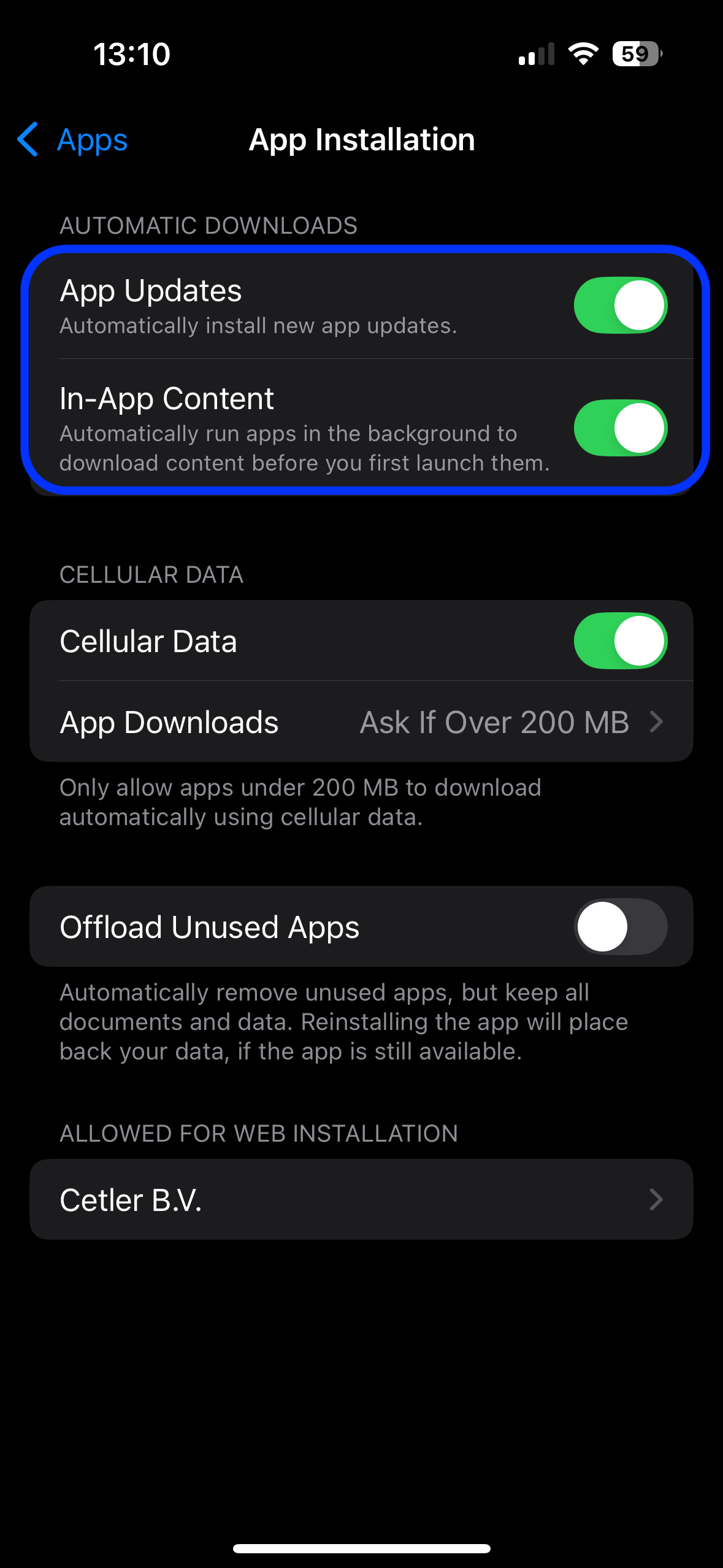
1. Go to your iPhone/iPad **Settings > Apps > App Installation**.
2. Under "Automatic Downloads," make sure **App Updates** is toggled **ON.**
{% hint style="info" %}
We strongly recommend enabling "App Updates" in your iPhone's settings for a convenient, hands-off experience! Onside ensures updates are ready, and iOS takes care of the rest if this setting is active.
{% endhint %}
#### 2. Manual Updates through the Onside App
If you prefer to review and install updates yourself, or if iOS automatic updates are turned off, you can easily manage them manually within the Onside Store app.
**A. From the "Updates" Section in Your Onside Profile:**
This is your central hub for all pending updates for apps installed via Onside.
1. Open the **Onside Store** app.
2. Navigate to your **Profile** screen.
3. Tap on the **"Updates"** section.
4. You'll see a list of all apps that have an update available from Onside.
* **Update All:** Look for an **"Update All"** button to update every app in the list simultaneously.
* **Update Individually:** Tap the **"Update"** button next to each specific app to update it separately.
**B. From an App's Page in Onside:**
You can also initiate an update directly from an app's product page.
1. Find the app within the Onside Store (e.g., by browsing the Now, Apps, or Games tabs, or by searching).
2. Tap the **"Update"** button to download and install the latest version.
***
If you have any further questions, please contact our support team. You can reach us via the chat in the bottom-right corner or by email at .
---
# Agent Instructions
This documentation is published with GitBook. GitBook is the documentation platform designed so that both humans and AI agents can read, navigate, and reason over technical content effectively. Learn more at gitbook.com.
## Querying This Documentation
If you need additional information that is not directly available in this page, you can query the documentation by asking a question.
Perform an HTTP GET request on the following URL with the `ask` and `goal` query parameters:
```
GET https://docs.onside.io/store/app-management/updating-apps-in-onside.md?ask=&goal=
```
`ask` is the immediate question: it should be specific, self-contained, and written in natural language.
`goal` is what the user is ultimately trying to achieve, the reason they need the answer. Sharing it helps GitBook give you a better, more relevant answer. A goal is most helpful when it describes the outcome the user wants rather than restating the question. For example, with `ask=how do I create an API token`, a goal like `automate deployments from our CI pipeline` lets GitBook tailor the answer to that use case.
The response will contain a direct answer to the question and relevant excerpts and sources from the documentation.
Use this mechanism when the answer is not explicitly present in the current page, you need clarification or additional context, or you want to retrieve related documentation sections.